How to configure clover for proxmox
The following instructions are based on the forum post linked below:
This process is needed when a computer doesn't have the ability to boot via a NVME drive.
- Install an NVME drive into the system.
- Install proxmox to the NVME drive.
- Flash a USB flash drive with Clover using rufus. This flash drive will live in the server.
- I have the image under V:\Applications\isos\(Clover boot for NVME) Refind with NVMEExpressDxe.img
- Install the flash drive into the system and boot off of it. Once booted into the flash drive you will likely need to press F3 to display hidden items. This should show your NVME drive. Select it to boot from it.
- Now we need to update clover to remove the need to press F3 every time the server boots up. Once proxmox is booted up we need the PARTUUID of the EFI partition of the NVME drive. Enter the shell and run the following command to locate your proxmox drive partition.
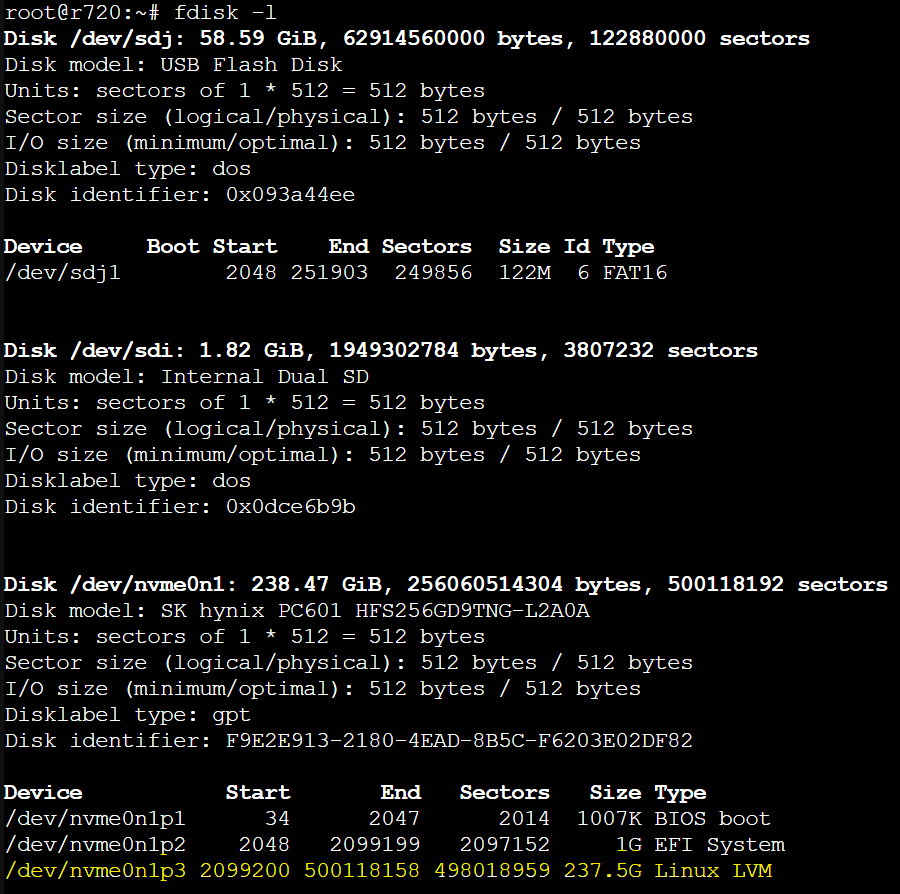
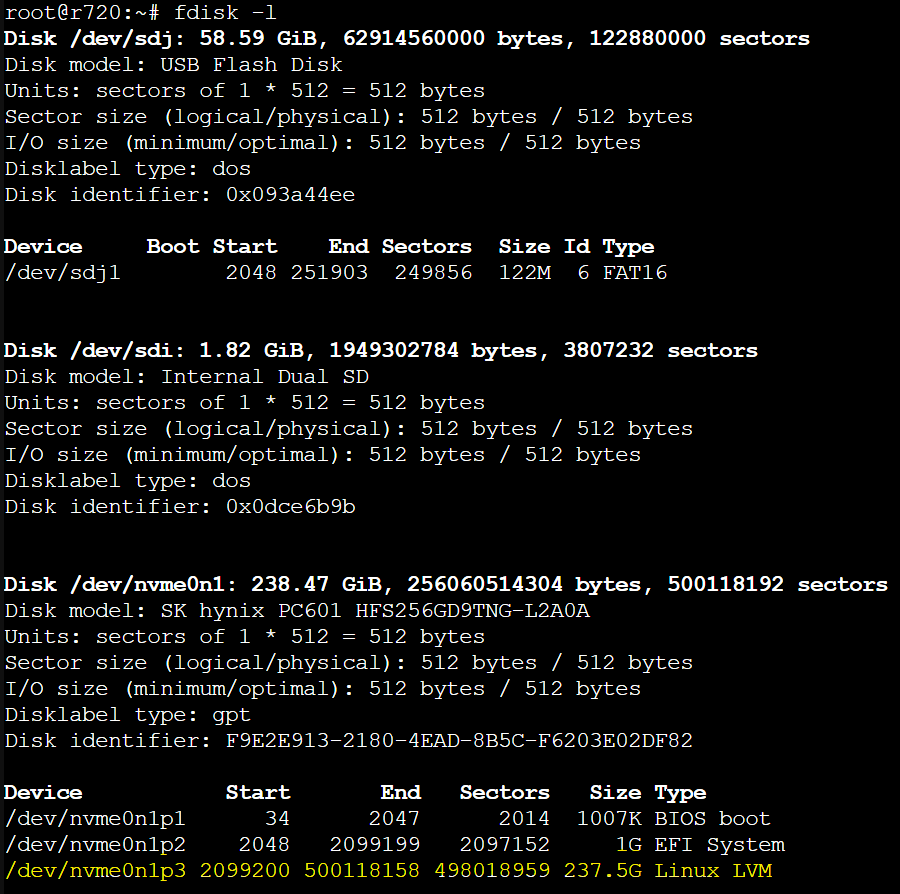
fdisk -lHere is an example of what were are looking for. The highlighted line is my NVME drive partition. Note down the device name for the next step.
 Now we can get the PARTUUID using the following command
blkidHere is a screenshot of the above example's PARTUUID

- Now power down the system. We need to edit the efi/clover/config.plist file on the clover flash drive. I find it easiest to edit this in a linux system. Below is the entire contents of the file I edited.
Note: the PARTUUID MUST be in all capital letters.
<?xml version="1.0" encoding="UTF-8"?> <!DOCTYPE plist PUBLIC "-//Apple//DTD PLIST 1.0//EN" "http://www.apple.com/DTDs/PropertyList-1.0.dtd"> <plist version="1.0"> <dict> <key>Boot</key> <dict> <key>Timeout</key> <integer>0</integer> <key>DefaultVolume</key> <string>LastBootedVolume</string> </dict> <key>GUI</key> <dict> <key>Custom</key> <dict> <key>Entries</key> <array> <dict> <key>Path</key> <string>\EFI\proxmox\grubx64.efi</string> <key>Title</key> <string>Proxmox</string> <key>Type</key> <string>Linux</string> <key>Volume</key> <string>10245efc-856f-455c-b5c5-d780cf7543af</string> <key>VolumeType</key> <string>Internal</string> </dict> </array> </dict> </dict> </dict> </plist> - Reinstall the flash drive into the server and boot it back up. It should now automatically boot into proxmox using the NVME drive.